What the progress bar measures — and where the file actually goes
The percentage is not the browser’s save dialog. This guide separates the two transfer steps and explains the temporary storage between them.
A download in SaveNova is two transfers, not one. First the file travels from SaveNova to temporary storage owned by your browser; then your browser handles saving it to your device. The page can measure the first transfer precisely and the second one not at all. Once you know that, the behaviour of the progress panel stops being mysterious.
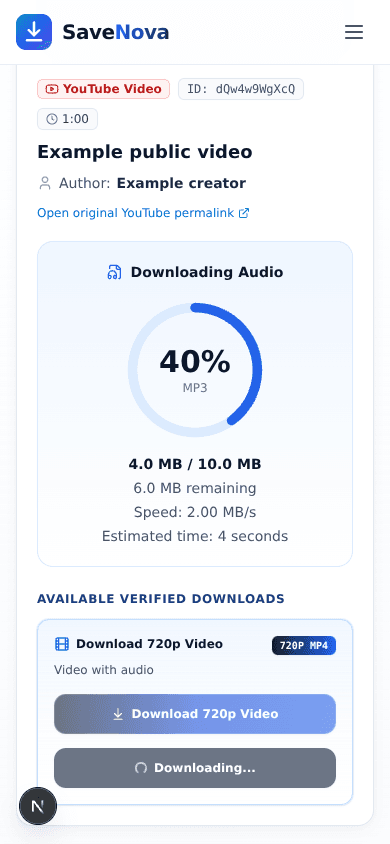
Stage one: what the percentage measures
When the response starts, the browser reads it in chunks and writes each chunk into origin-private file system storage before reading the next one. The percentage is bytes written divided by the known total. The speed figure is measured from those writes and the elapsed time, and the estimate extrapolates from the same numbers. None of it describes the final save to your Downloads folder.
If the server or an intermediary does not send a reliable total length, the panel shows received bytes and speed but leaves the percentage indeterminate until the end. That is deliberate: a guessed percentage that reaches 100% before the file is complete is worse than no percentage. The bar is also capped just below 100% until the last byte arrives and the staged file is committed.
Stage two: your browser owns the save
When the staged file is complete, SaveNova hands it to the browser as a normal download. From that moment the browser decides whether to save silently, ask where to put the file, or open it in a viewer. A website cannot read your Downloads folder, cannot choose the destination, and cannot tell whether you renamed or cancelled the file. That is why the page says the file “transferred” rather than “saved” — the transfer is what it can observe.
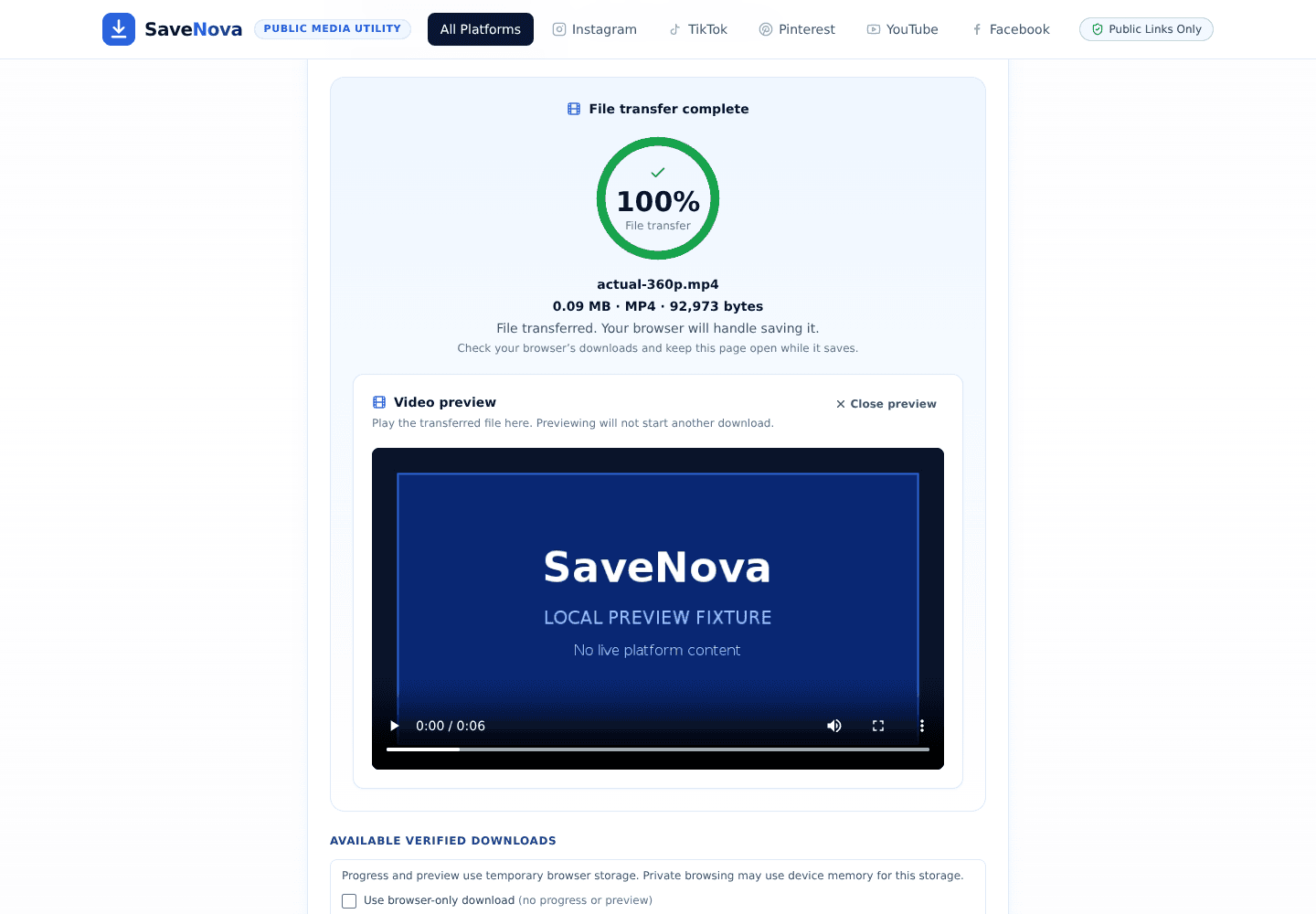
Previews, and what closing one does
The preview player reads the staged file locally. It does not autoplay, does not fetch the media again, and uses the browser’s native controls, including fullscreen and seeking. Closing the preview releases its hold on the storage. Because the staged copy is what made the preview possible, reopening the preview requires starting a fresh download — this is the one behaviour that surprises people most often.
The browser-only option
The checkbox labelled Use browser-only download skips temporary storage entirely. The file is handed straight to the browser, which means no in-page progress, no preview, and no staging quota to worry about. On a phone with limited free space, in private browsing where storage can behave differently, or on a very large file, it is often the more predictable choice.
Where files land on Android
- Chrome normally reports completed downloads in the notification shade and lists them in Chrome’s Downloads page.
- The file itself is usually in the device’s
Downloadfolder, reachable through the Files app. - A gallery app only shows a downloaded video if your device’s media scanner has indexed it; if it does not appear, open it from Files or move it into a Pictures folder.
- If Chrome asks whether to allow multiple downloads, allow it once for savenova.site; carousel slides are separate files.
Where files land on iPhone and iPad
- Safari saves downloads to the Files app, under Downloads on iCloud Drive or On My iPhone, depending on your download settings.
- Images do not go to Photos automatically. Open the downloaded file, tap Share, then Save Image.
- Videos can be played directly from Files. To add one to Photos, use Share → Save Video.
- If the download opens in a viewer instead of saving, use the share sheet’s Save to Files option or enable browser-only mode.
Temporary storage, quota, and cleanup
Temporary staging uses the browser’s origin-private storage. Browsers cap how much a site may store and can report privacy-preserving estimates rather than exact free space, so SaveNova limits a new staged file to a proportion of the estimated remaining quota and falls back to a normal browser download when the estimate is insufficient. At most two staged files are kept per page. After a download, the browser-download URL keeps a five-minute grace period; after that the staged copy is removed.
A crash or a closed tab can leave a staged file behind. On a later download, files older than 24 hours are collected when the browser supports the required storage and locking features; otherwise clearing the site’s storage removes them. Private browsing may store this data in memory instead of on disk, which is why large files in a private window can fail even when the device has free space.
How this guide was checked: written by the SaveNova team and reviewed on 1 November 2026 against the behaviour of the current build, including the limitations described above. It contains no invented test results or performance figures. If a step no longer matches what you see, report the guide and we will correct it.